A helping paw
Settle in. We’ll show
you around.
Your guide to peaceful starts, happy mornings, and everything in between.
Good questions
A little clarity for a calmer night.
Why didn’t my session count as a successful night?
A session must reach its displayed wake time. Ending early or exceeding your return limit can end a session without a successful night. If you leave the app, return within your limit and before locking your phone. iOS signals are best effort, so always lock with SleepyCorgi visible.
Does SleepyCorgi know whether I’m asleep?
No. SleepyCorgi records the outcome of a session you start. It does not measure biological sleep, diagnose sleep problems, or continuously monitor your phone use.
Why am I not receiving bedtime reminders?
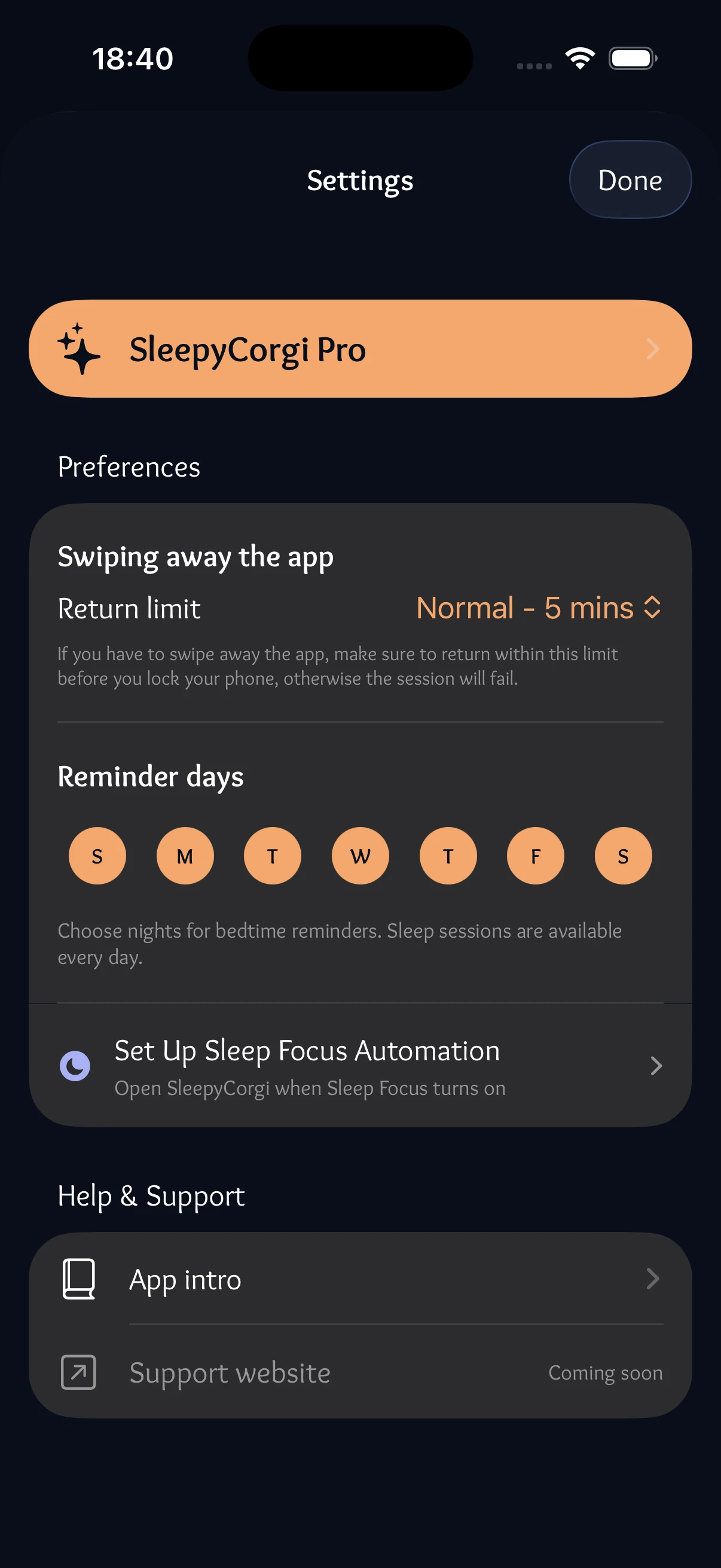
Check your Reminder days in SleepyCorgi Settings and allow notifications in iPhone Settings → Notifications → SleepyCorgi. Also check whether a Focus is silencing notifications. Reminders and session eligibility are separate.
How do I stop a session early?
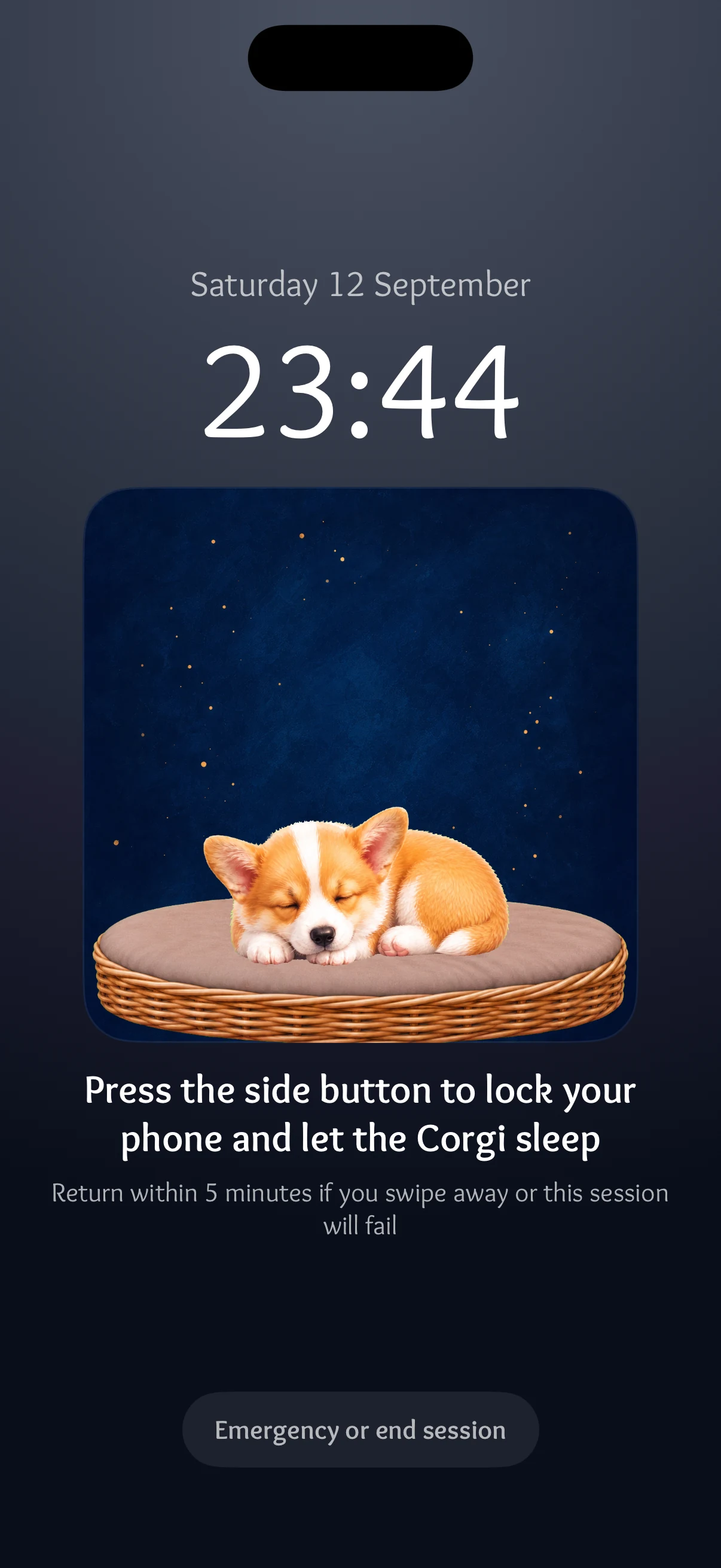
Open the sleep screen and tap “Emergency or end session”, then follow the confirmation. A deliberately ended session does not earn a successful night. Always use your phone when you need it.
Why are my selected apps not blocked?
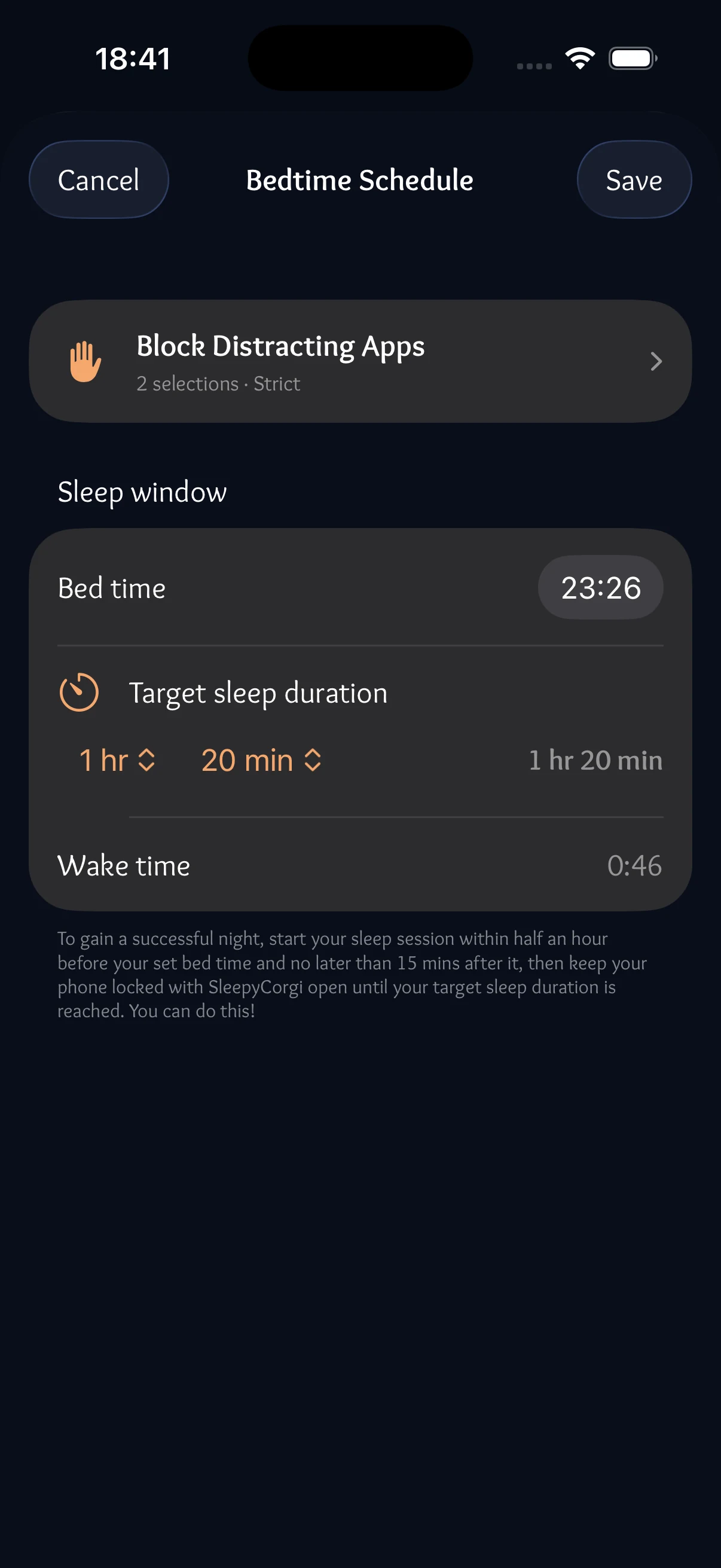
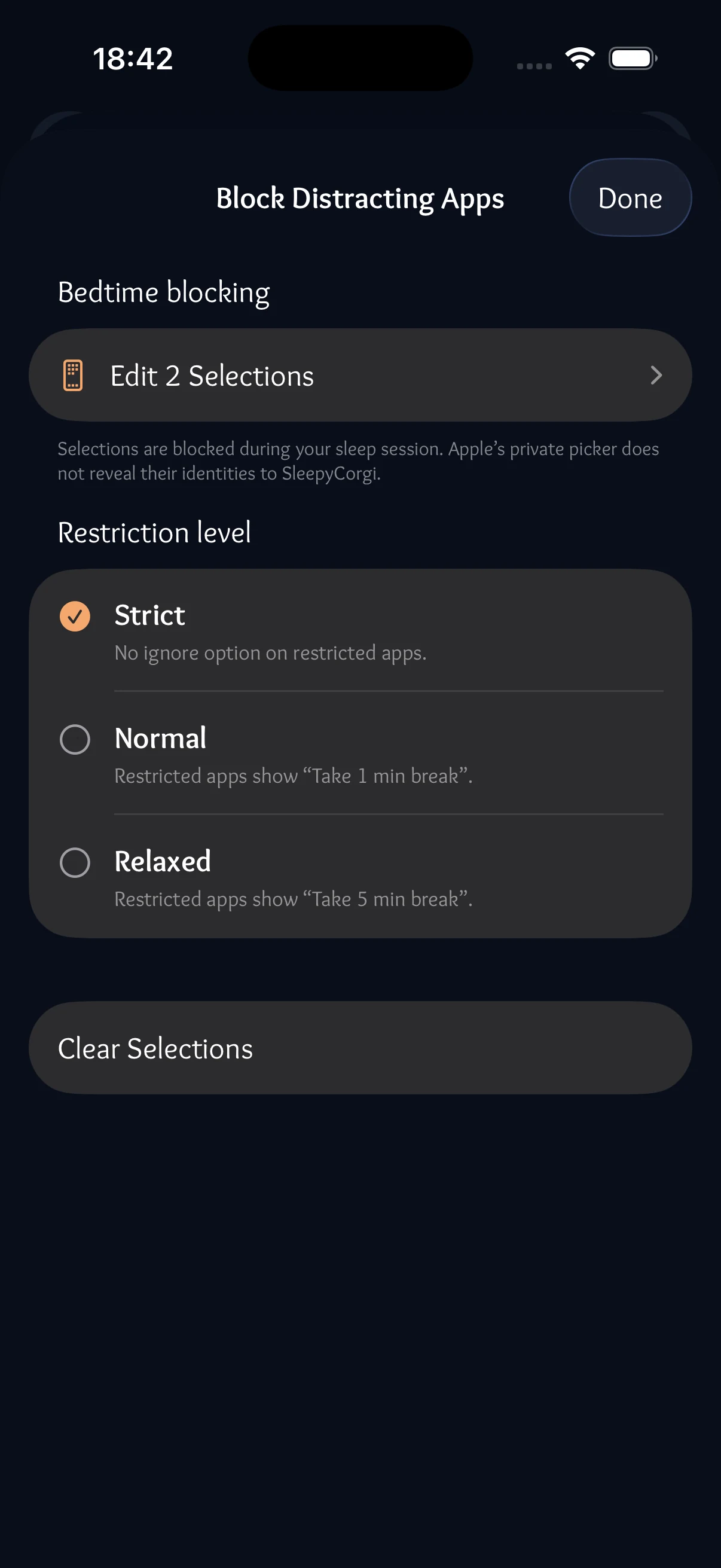
Check Screen Time permission and your app selection in Bedtime Schedule → Block Distracting Apps. Blocking begins when a sleep session starts. Available breaks depend on the selected restriction level and your plan. iOS manages enforcement.
How do subscriptions and trials work?
SleepyCorgi Pro provides session access. The in-app purchase screen shows available plans, prices, and trial eligibility before you confirm. A seven-day trial is shown only when Apple confirms an eligible offer. Subscriptions renew automatically unless cancelled.
How do I restore, cancel, or request a refund?
Use Restore Purchases in Settings → SleepyCorgi Pro with the Apple Account used for the purchase. Manage or cancel in Apple subscriptions. For a trial you don’t want to renew, Apple advises cancelling at least 24 hours before it ends. Deleting the app does not cancel a subscription. Request refunds through Apple’s Report a Problem.
Can I recover my corgi on a new iPhone?
In Settings → Preferences → iCloud & Backup, enable iCloud progress sync before changing devices and check the last-sync time. On the new iPhone, sign in to the same iCloud account and enable sync to merge your corgi growth, earned rewards, and finished session history. Sync is optional and does not require a subscription. Active sessions, blocking selections, bedtime settings, and reminders stay on each device. Apple device backups are a separate recovery option; sync is not a history of recoverable backups.
What happens to my data if I delete the app?
Deleting the app removes its local app data from that device. An existing iCloud progress copy, device backups, and Apple or RevenueCat purchase records are separate. Turning sync off or deleting the app does not remove an existing iCloud copy; manage app data through your Apple iCloud storage settings. Deleting the app does not cancel your subscription. See our Privacy Policy for details.
 SleepyCorgi